Configure the PAYMUSE V10 and VM30 portable payment terminals. Both share the same configuration options — the V10 interface is shown as the example.
Note — The VM30 has a smaller screen and displays less content. Use the Enter key (green button) to scroll and view more information.
Accessing Settings
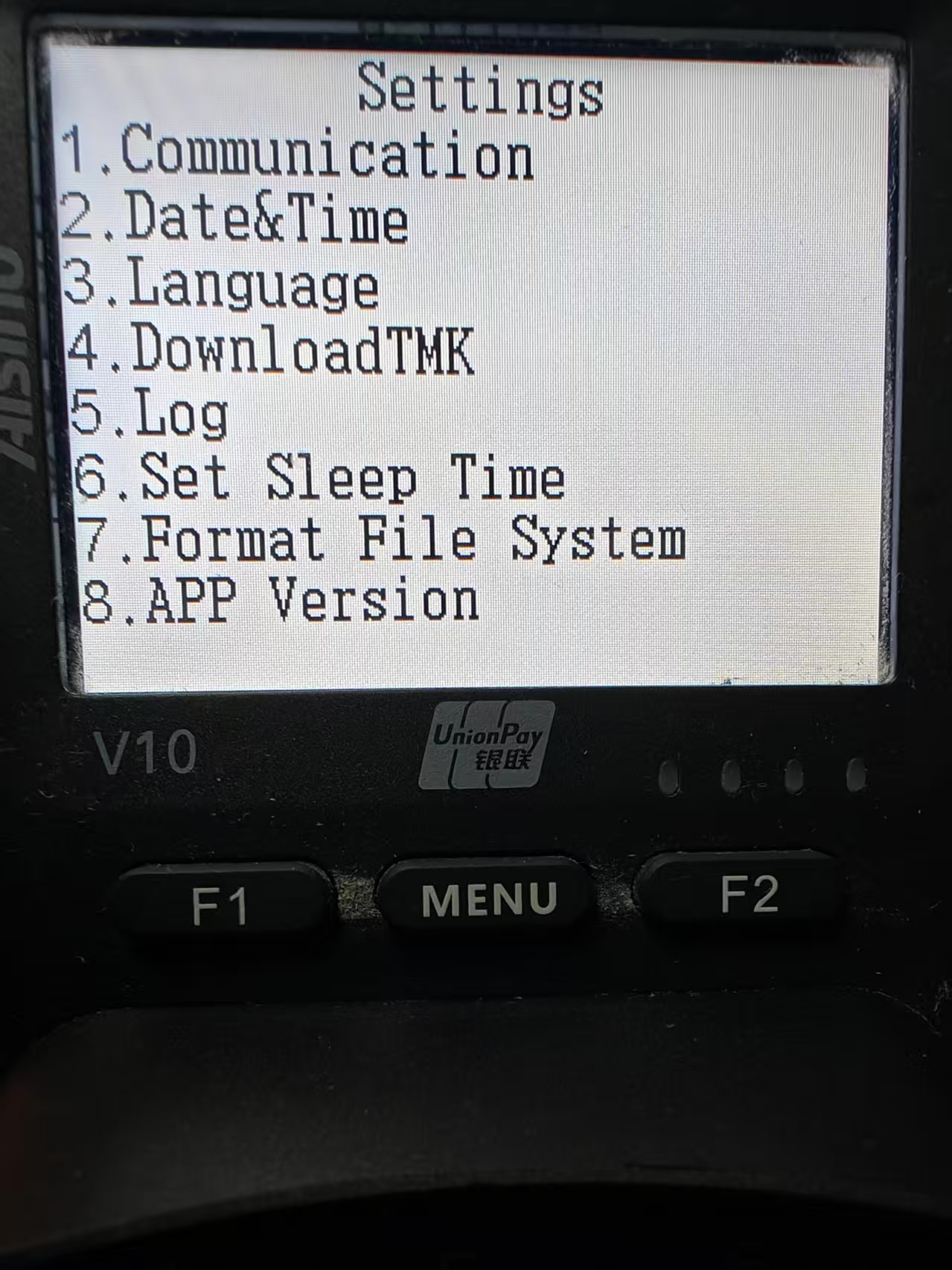
On the welcome page, press the key combination 3 Enter 01 to enter the settings page.
V10 Settings page — press number keys 1–8 to select a configuration item
Press the corresponding number key (1–8) to enter the desired configuration item. Typically available options:
Communication
Date & Time
Log
Set Sleep Time
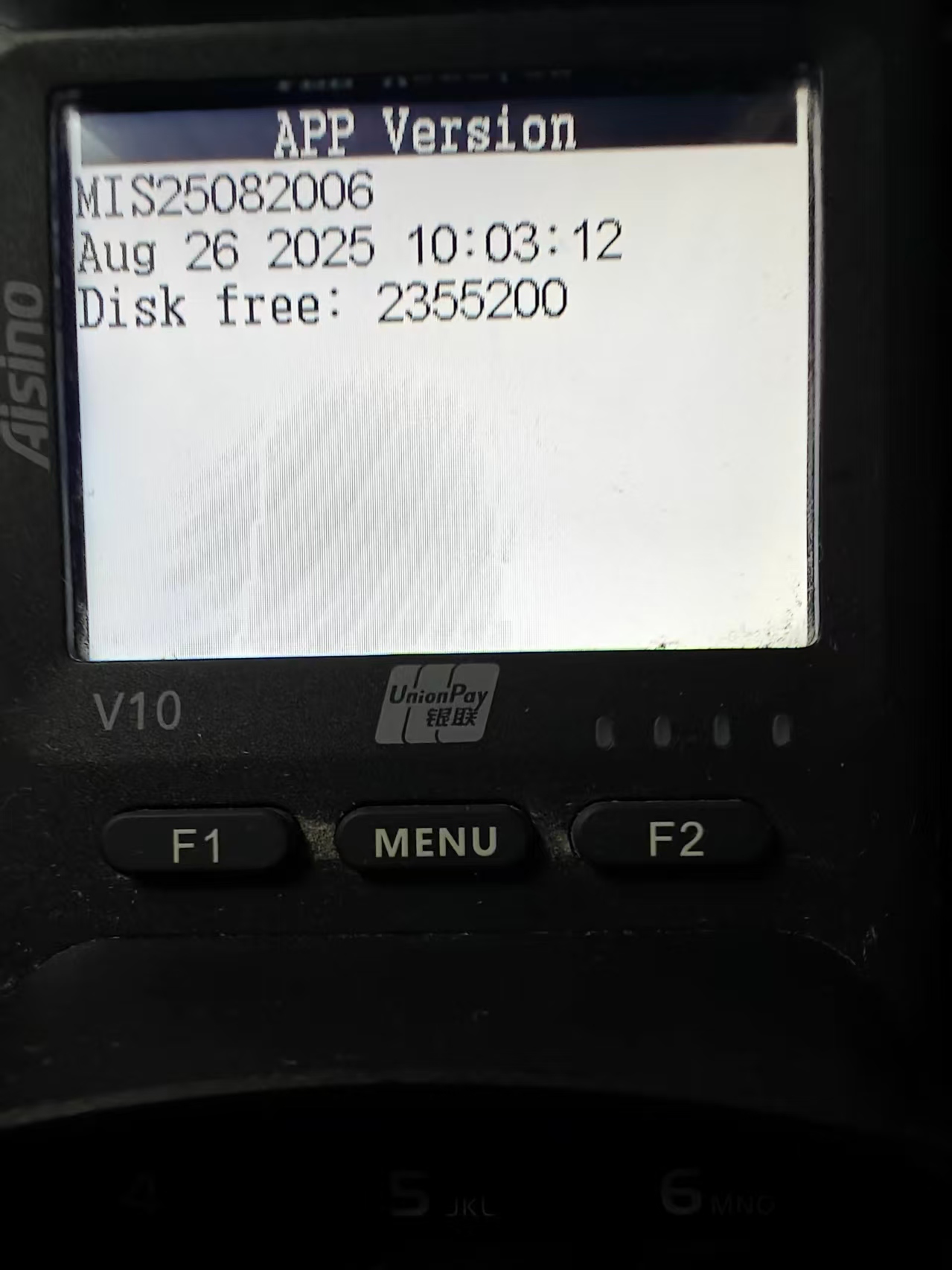
App Version
Warning — Other configuration items may pose risks. Do not attempt to operate them without guidance.
Communication Setup
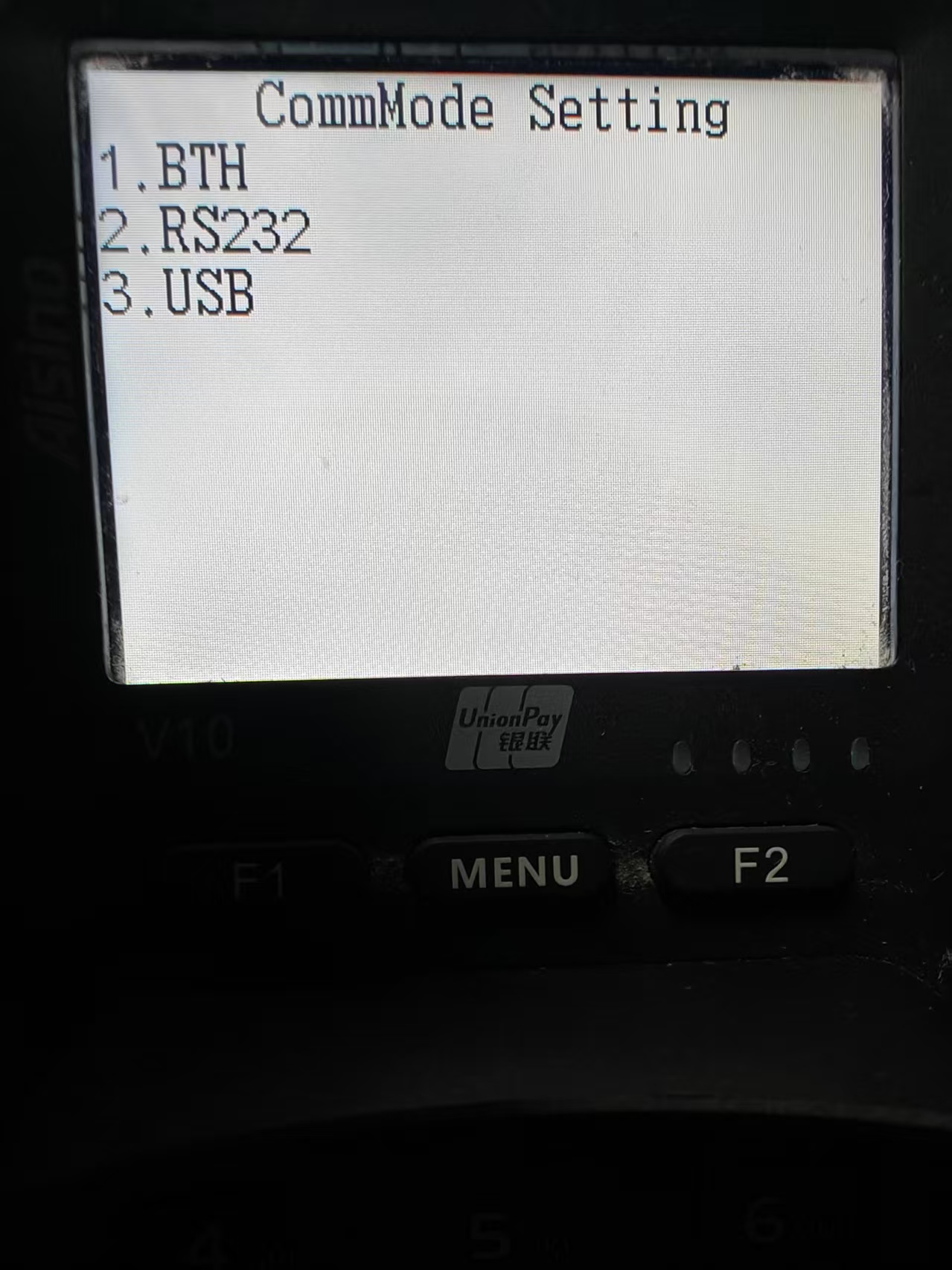
Configure the current communication port. Press number keys 1–3 to select the port:
Communication mode selection — BTH (Bluetooth), RS232, or USB
Device
Port Options
V10
Fixed to USB port
VM30
Bluetooth or USB (selectable)
Date & Time
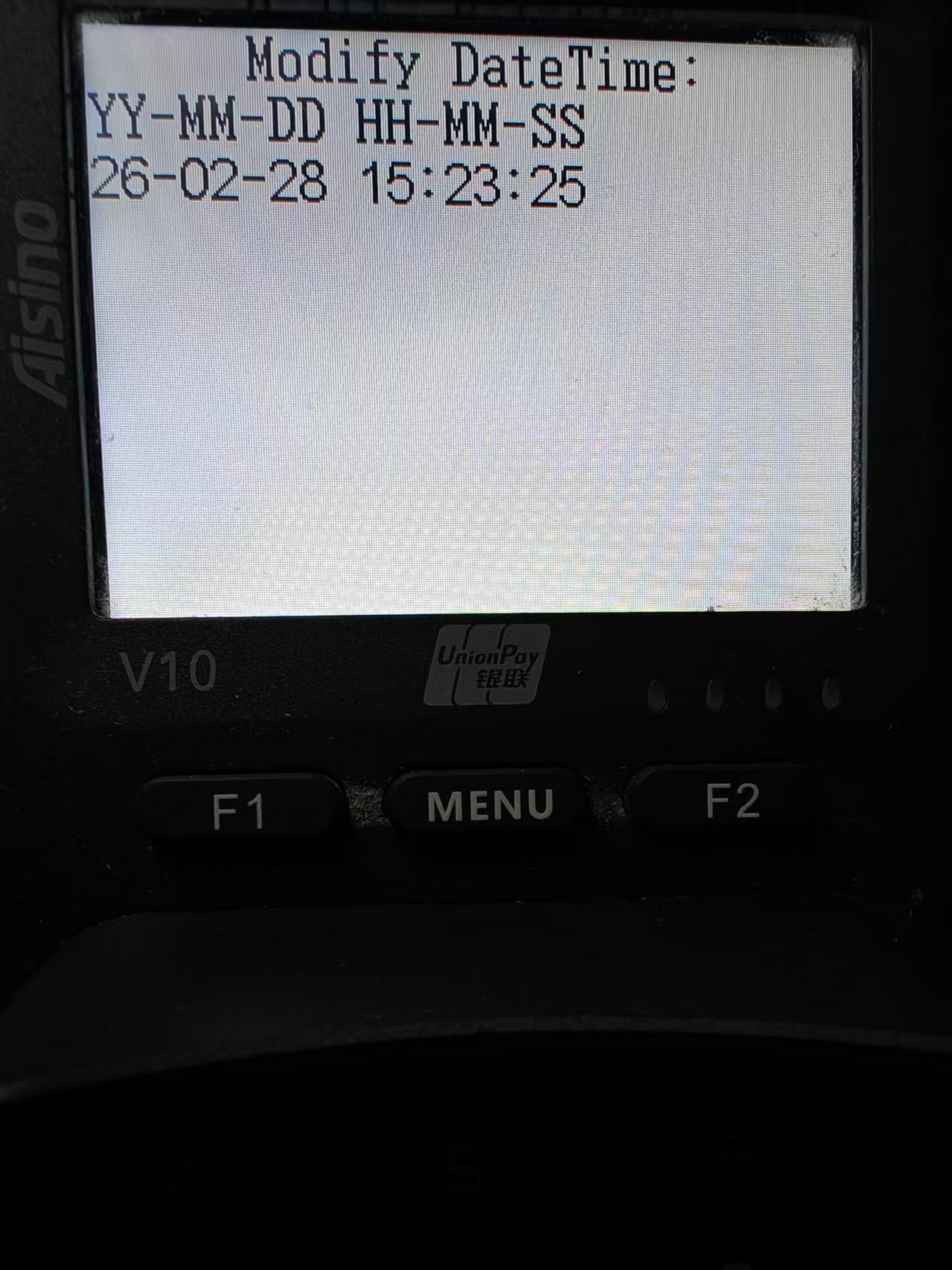
Enter the year, month, day, hour, minute, and second using the numeric keypad. Press the confirm button (green) to save or the cancel button (red) to discard.
Date & Time configuration — enter values in YY-MM-DD HH-MM-SS format
Log Collection
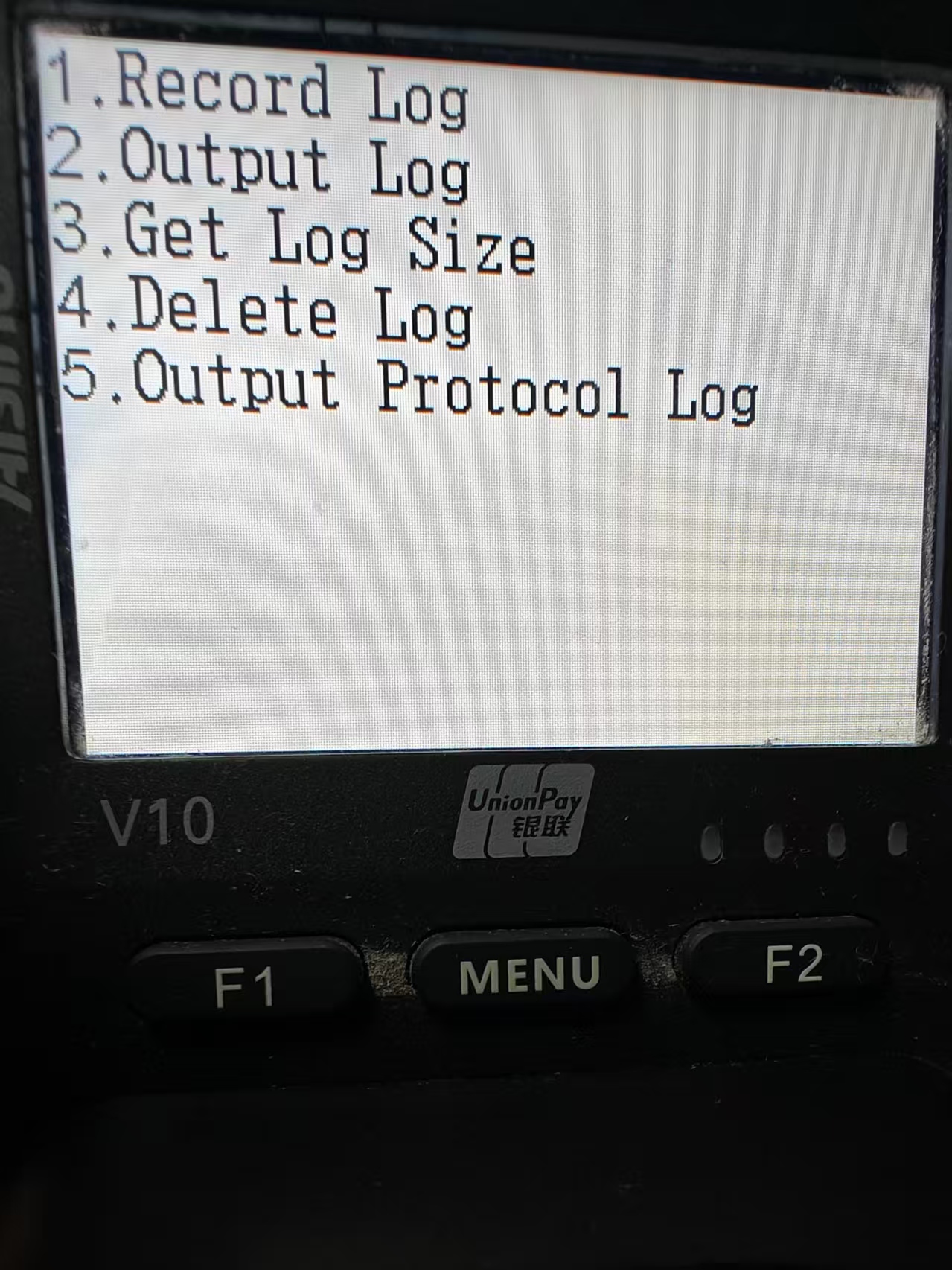
Collect EMV logs to help developers resolve transaction issues:
Log menu — Record, Output, Get Size, Delete, and Output Protocol Log
Press 4 to delete existing log files
Press 1 to start logging
Exit the configuration interface and perform a normal transaction
After reproducing the issue, re-enter the Log settings page
Press 2 to transfer logs to the PC (ensure the PC has software monitoring the serial port)
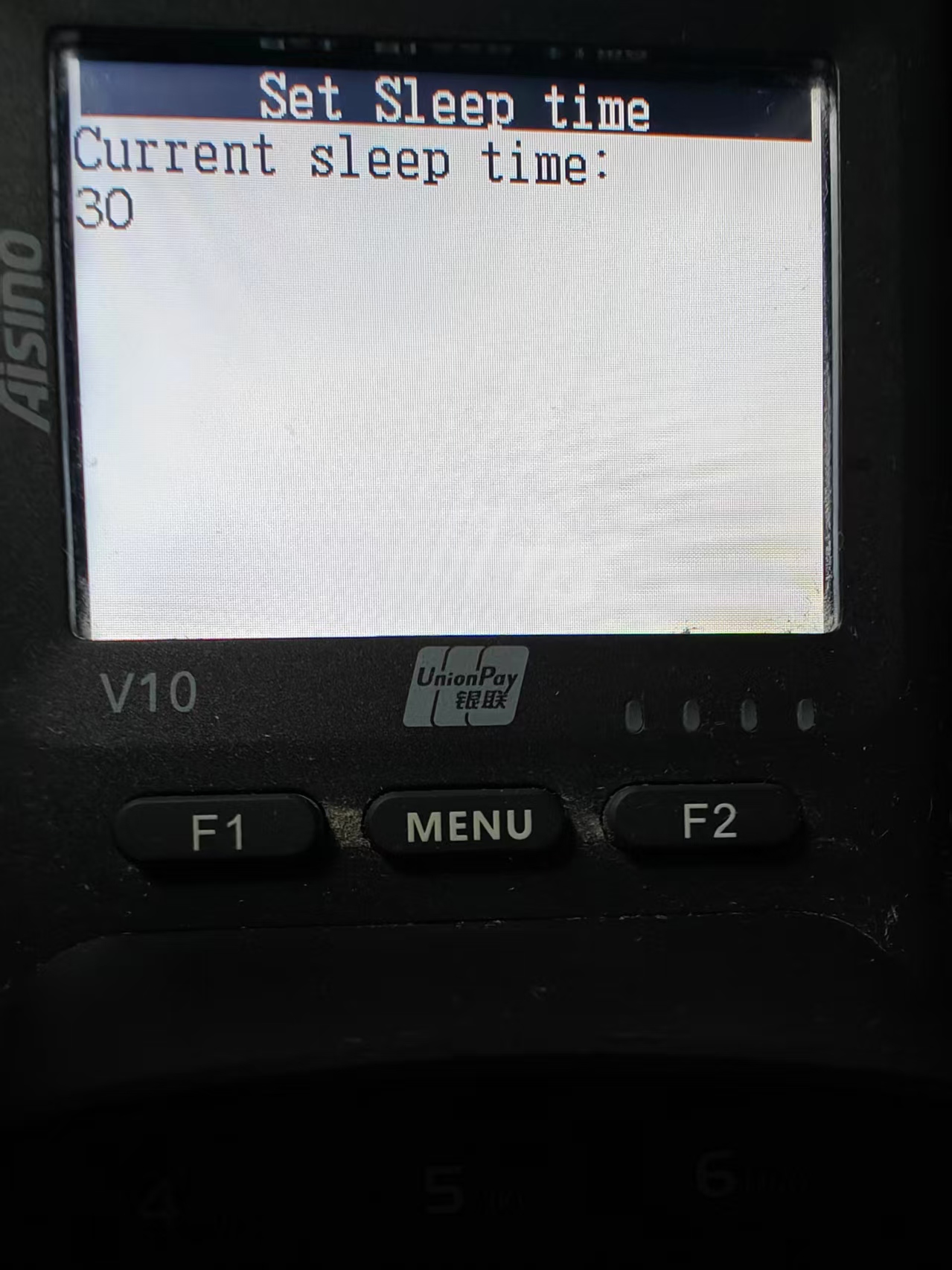
Set Sleep Time
Set the interval for entering power-saving mode. Default: 30 seconds. Set to 0 to disable.
Sleep time configuration — default is 30 seconds
Battery warning — When the VM30 operates in Bluetooth mode, disabling power-saving mode will significantly reduce battery life.
Shortcut Keys
Key Combination
Action
3 Enter 01
Enter settings page
3 Enter 02
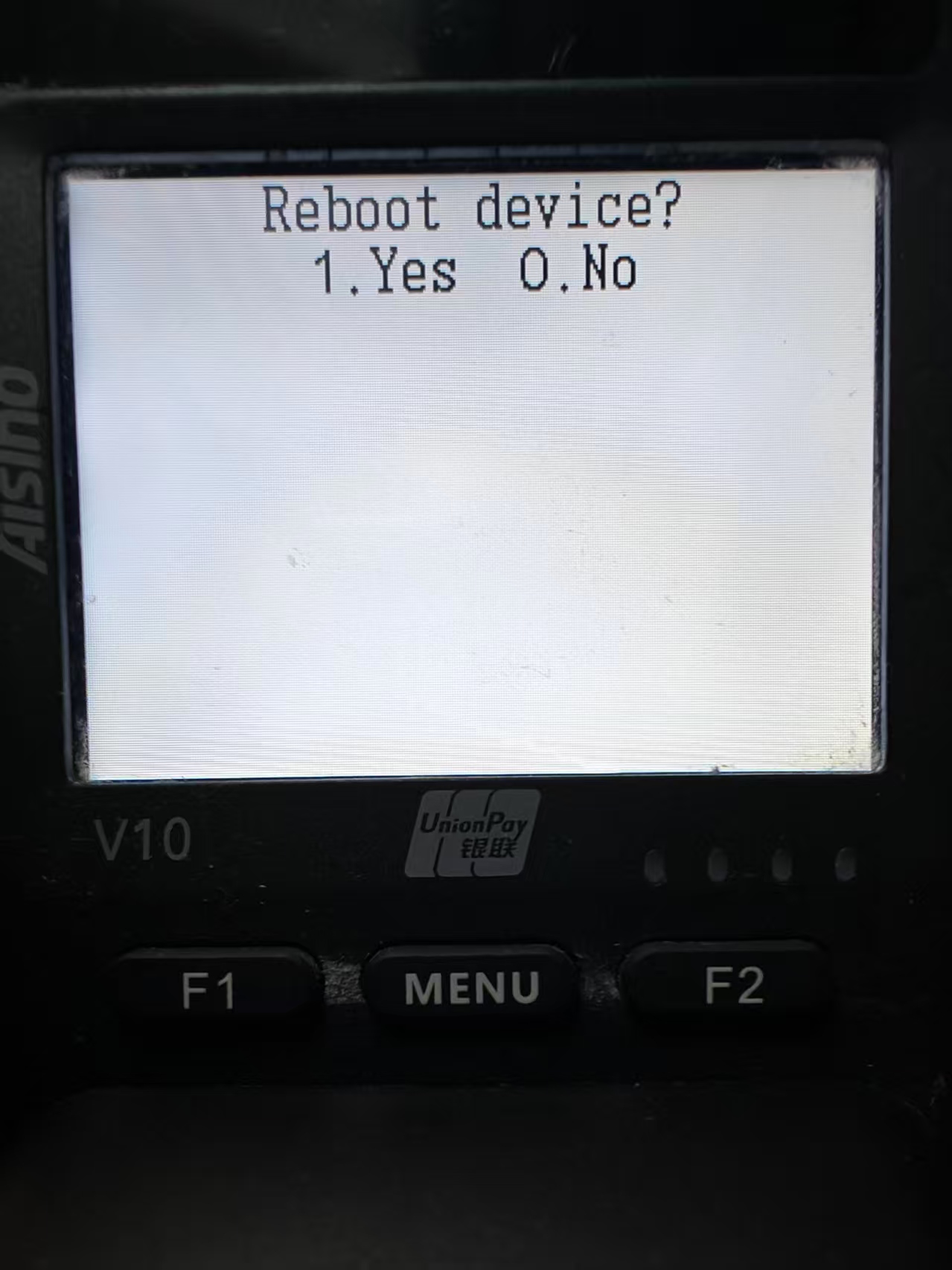
Reboot device (press 1 to confirm, 0 to cancel)
App Version screenReboot confirmation (3 Enter 02)